
Start here
How SmashHQ works
SmashHQ is a club operations tool. It helps admins register the club, manage players, run open play sessions, collect payments, and keep a clean record of club finances.
Create the club admin account and club workspace.
Add players, fees, courts, and session preferences.
Start a session, rotate games, and review payments after play.
Club setup
Register your club as Club Admin
The club admin account is the main control point. Use it for settings, players, sessions, payments, offline access, and club reporting.
- 1
Open Get Started
From the SmashHQ home page, choose Get Started. This opens the club registration page.
- 2
Choose Club Admin
Select the Club Admin option, then enter the admin name, email, password, and club name.
- 3
Create the account
After the account is created, SmashHQ opens the club workspace where you can start adding players and sessions.
Admin rule
Use an email address that the club can keep long term. If a committee member leaves, update the admin details before handing over the account.
Players
Add players to your club
Players are the people who appear in your session pool, leaderboards, payment records, and club history. Add your regulars first, then casual players as they arrive.
- 1
Go to Players
Open Players from the main app navigation. This is your club player list and leaderboard area.
- 2
Register Player
Choose Register Player, then add the player name, type, gender, grade, and any profile details you want to track.
- 3
Share access code
Each player can receive an access code. They can use it from Join a Club to open their player portal.
Simple player checklist
- Choose Regular for paid members.
- Choose Casual for drop-in players.
- Add grade if your club uses skill groups.
- Keep access codes private to the correct player.
Club access
Add additional Club Admins
A club can have more than one admin. Use this for committee members, session managers, finance coordinators, or anyone trusted to help run the club.
- 1
Open Settings → Account & Access
Sign in as Club Admin, open Admin, then go to Settings. The Account & Access section at the top shows your profile, club details, and admin tools.
- 2
Add the new admin
In Account & Access, use Add Club Admin, enter the person name and email, then submit. SmashHQ creates an admin login and a player profile for the same person.
- 3
Share the access code
If email delivery is not configured, copy the temporary access code shown on screen and give it to the new admin privately.
Important behavior
Every Club Admin is also added as a player in that club. When they sign in as an admin, they see the full club tools. When they sign in in player mode, they see the limited player portal.
Game night
Start a new game or session
A session is one club night or playing block. Create one for each date you play, especially when opening guest spots.
- 1
Open Start Session
From Open Play Sessions, choose Start Session. Give the session a clear name like Friday Social Doubles.
- 2
Set the play date and courts
Pick the session date, number of courts, and court names. Guest spots close automatically after the play date.
- 3
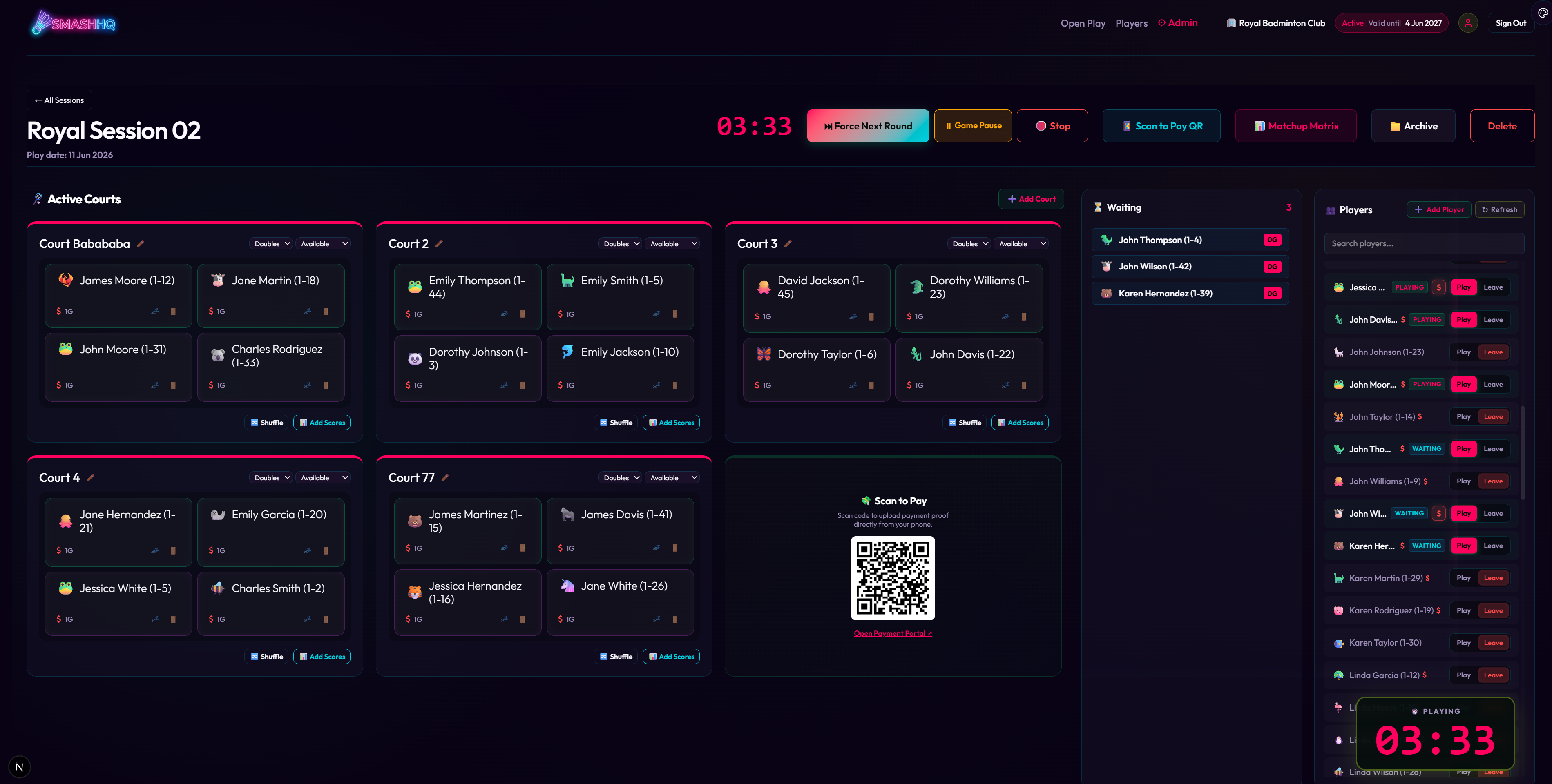
Start and run the board
After creating the session, add players to the pool and use the live dashboard to allocate courts and rotate games.
Offline use
Get the offline client and offline key
Use the offline client when the club venue has poor internet or when you want a dedicated desktop setup for game nights.
- 1
Download the desktop client
From the home page Downloads section, choose the Windows or macOS client. The desktop client is designed for offline club nights.
- 2
Get your desktop key online
A club administrator generates a desktop license key in their online account under Admin > Settings > Account & Access. The same key works with the Windows and Mac apps.
- 3
Enter the offline key
Paste the key and select Activate. No local account, email entry or password is required. Your club data remains on this computer.
- 4
Open and play
Later launches open your sessions automatically. When the key expires, paste a renewal key. Renewal preserves players, sessions and finance data.
How the key and local DB work
The desktop license key is generated by a Club Admin from Admin → Settings → Account & Access. It is tied to the primary admin email and expires with the club subscription or trial.
The offline client keeps a local database on that computer. SmashHQ checks the local schema version on startup so future online sync can safely push players, payments, and club requests into the desktop client.
Session controls
Key session configurations
Most clubs only need a few settings. Start simple, then adjust after one or two sessions once you see how your players rotate.
Money
Manage payments and finances
SmashHQ separates player payment proof, admin approval, and club finance reporting so your committee can see what came in and what the session cost.
- 1
Set fees in Admin
Open Admin, then Settings or Finance, and enter regular fees, casual fees, court cost, and shuttle cost.
- 2
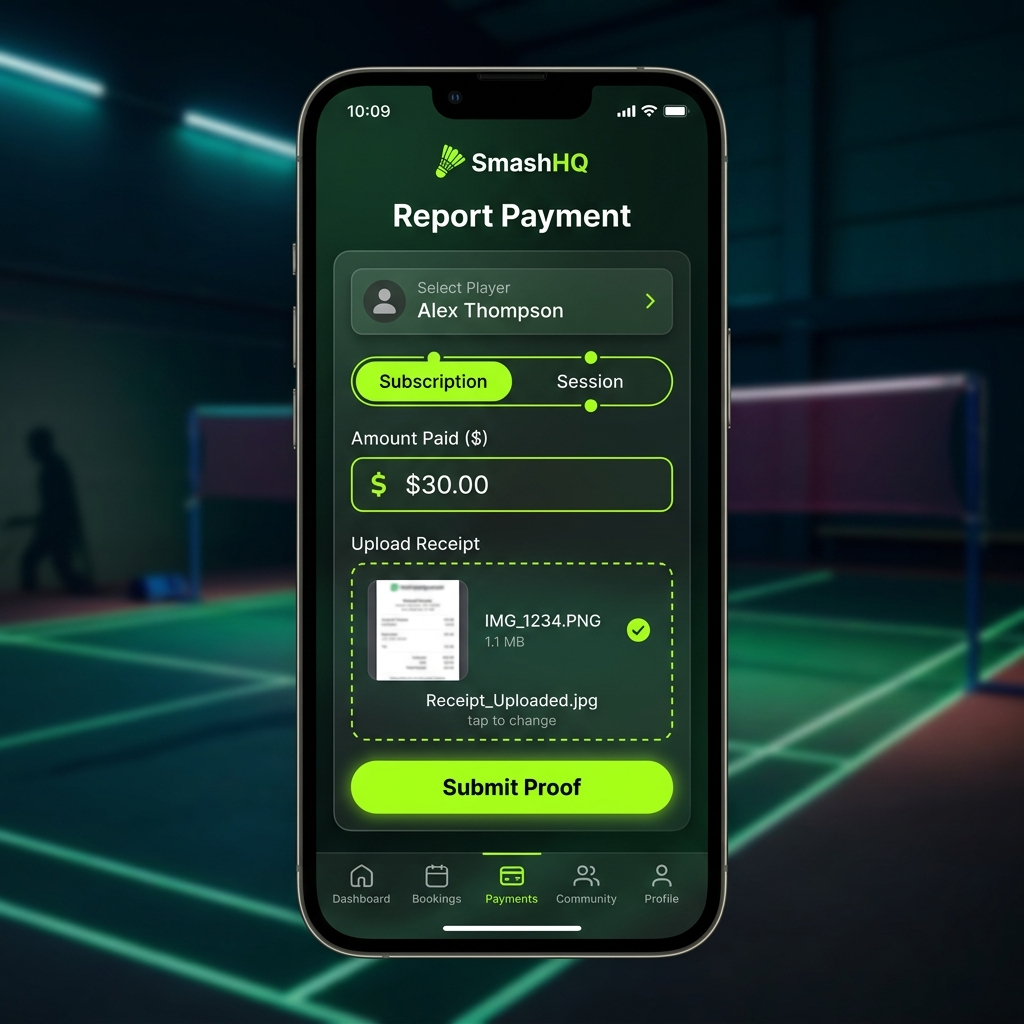
Players submit proof
Players can report subscription, session, or adhoc payments from their player payment page.
- 3
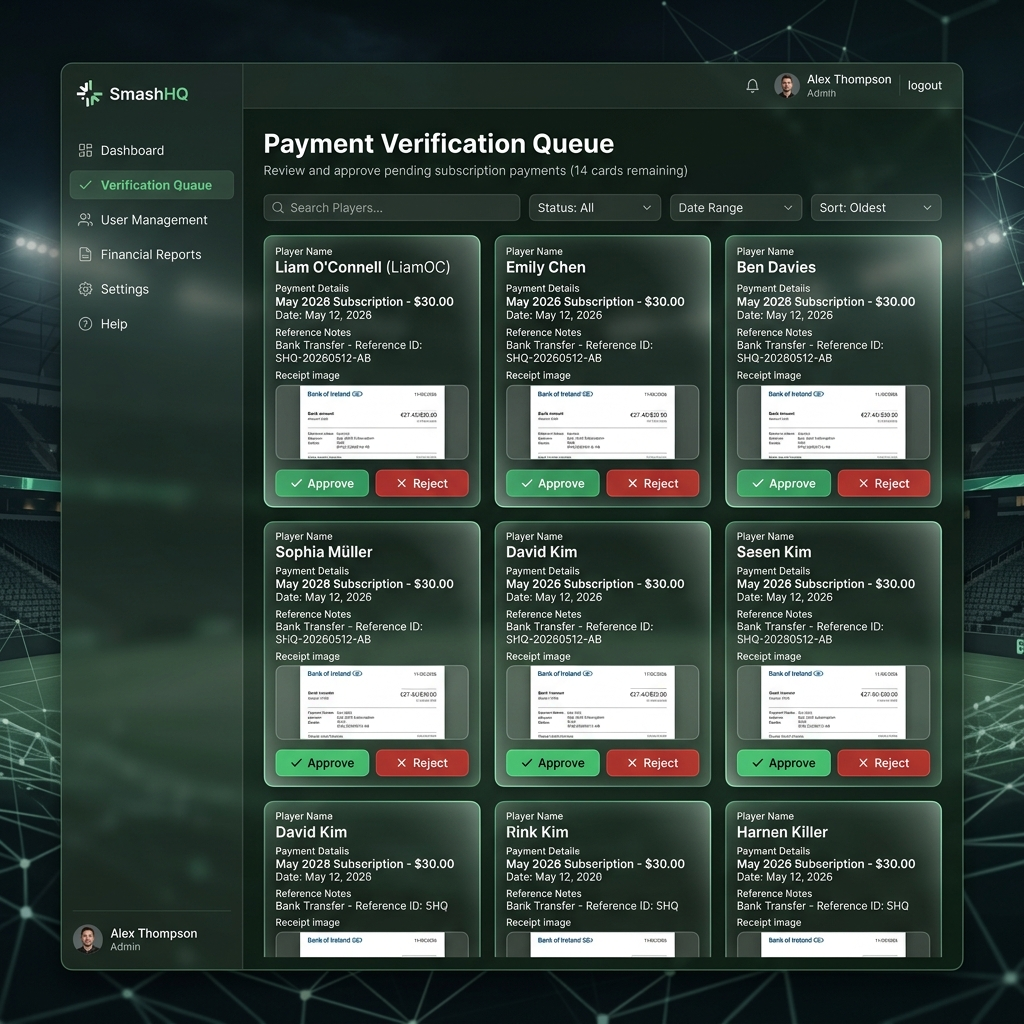
Approve and review
Admins review payment proof, approve or reject submissions, and use Finance to see income, expenses, and session costs.
Player view
Use the player portal
Players get a simpler view than admins. They can join clubs, send interest, request guest play, see where they are playing now, and review payments.
- 1
Player signs in
Players use the player sign-in path. Club admins can also sign in in player mode when they want their playing view.
- 2
Join or request access
Players can join with an access code, register interest in a club, or request an open guest slot.
- 3
Check club, court, and payments
The player portal shows registered clubs, where the player is allocated in an active session, playing history, and payment records.
Multi-club players
A player can belong to more than one club. SmashHQ keeps each club registration separate, while the player portal brings the person club list, active court allocation, history, and payment records into one place.